Create a YouTube gallery widget using a card style
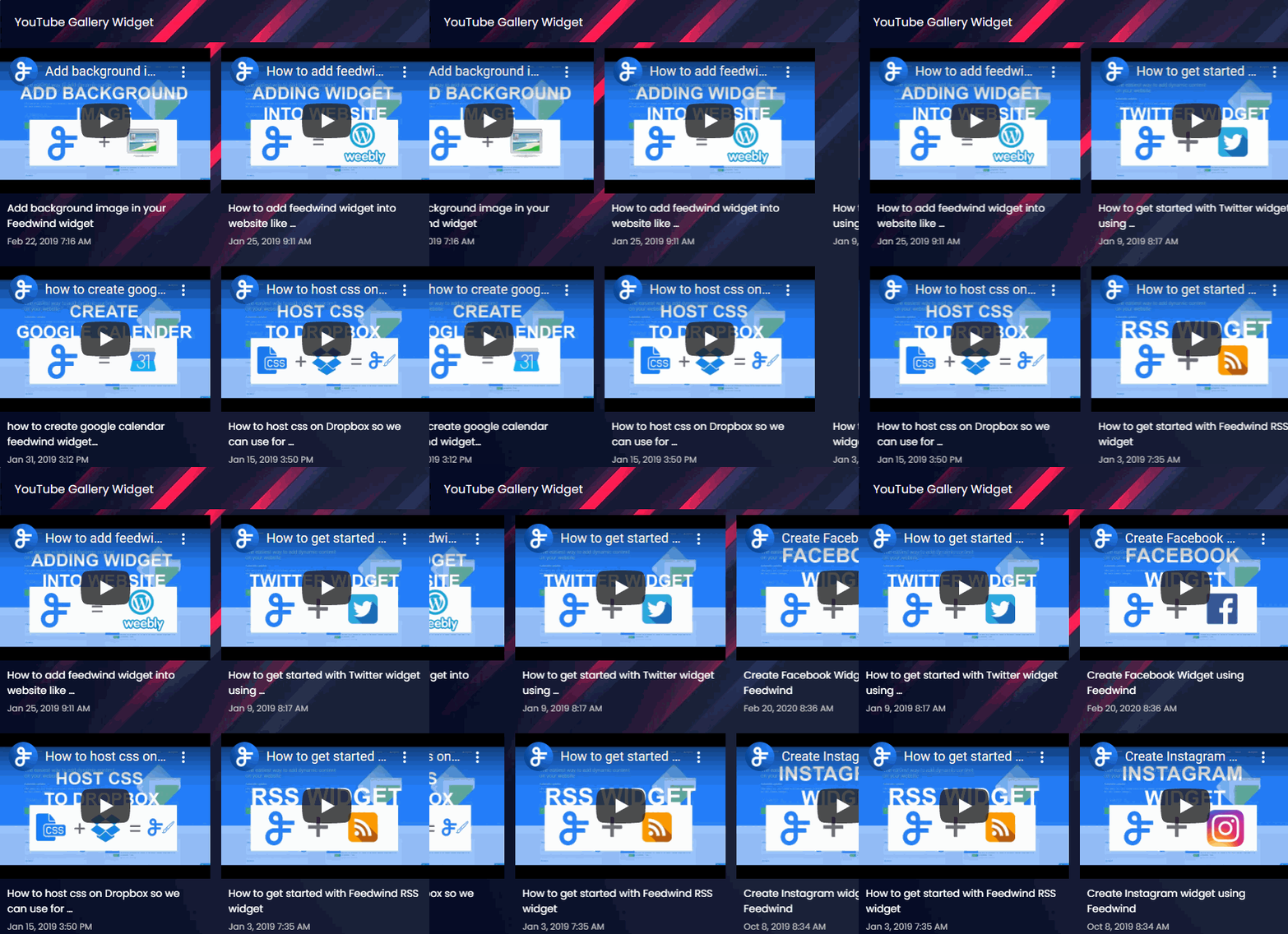 Here’s an example YouTube Gallery Widget followed by steps to create this widget.
Use the Feedwind card style option to create a YouTube gallery widget and customize the design as your website theme design
- Widget Settings
-
-
Create widget ->
YouTube -
Feed URL ->
https://www.youtube.com/channel/UCkGCrPKcT3M04WH2QilLJWQ -
General -> Width ->
Responsive -
General -> Style ->
Card -
General -> Width -> Posts ->
2 -
General -> Height -> Posts ->
2 -
General -> Add space between posts ->
15 -
General -> Advanced setting -> Font Style ->
poppins, sans-serif -
Feed Title -> Background Image ->
Add background Image -
Feed Content -Background Color ->
#050c27
Rest keep as default
-
Create widget ->
Easy Steps
Related posts

Embedding YouTube Videos: Easy Tips for a Smooth Experience
Videos are a great way to make your website more interesting. YouTube is the biggest site for sharing videos,...

How to Add Cool YouTube Videos to Your Website Easily
Want to make your website more fun and engaging by showing some cool YouTube videos right on your pages?...

Enhancing User Engagement with YouTube Widgets on Your Website
A YouTube widget lets you seamlessly integrate video content from YouTube into your website. This tool is essential for...