LinkedIn Widget: Live Feed Setup
A LinkedIn widget lets you display live posts from your LinkedIn profile or company page directly on your website for instant, always‑fresh social proof. It fixes stale content, builds trust with visitors, and nudges more of them to connect, follow, and become leads without any manual updates or code.
Why Use a LinkedIn Widget
Live LinkedIn content shows visitors what you are talking about right now thought‑leadership posts, product updates, team wins, and events rather than static logos or screenshots. This increases dwell time, gives prospects confidence that your brand is active in the market, and supports SEO with regularly refreshed, authoritative content. With the widget, posts auto‑sync in responsive layouts, so you set it up once and your site keeps updating itself.
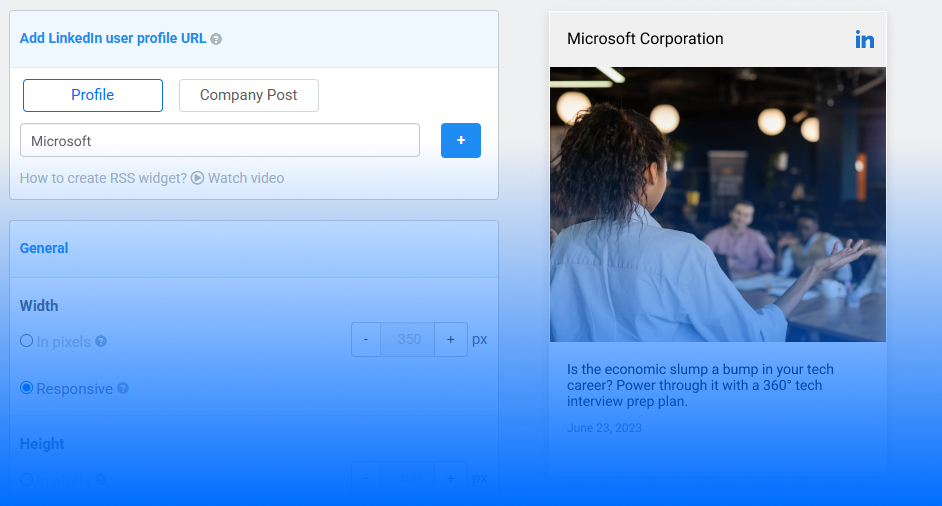
How to Create Your LinkedIn Widget
Use these simple steps to build a LinkedIn widget using FeedWind.
- Select LinkedIn as your content source
In the popup, choose LinkedIn from the list of content sources (RSS Feed, Facebook Page, Google Calendar, X, Instagram, YouTube, Pinterest, LinkedIn). This tells the builder you want to pull content from LinkedIn instead of other channels.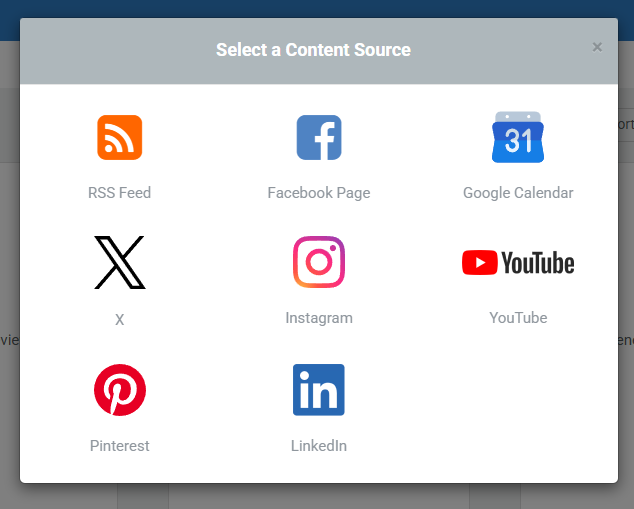
- Choose profile or company posts
In the “Add LinkedIn user profile URL” panel, pick whether you want to show a Profile feed or Company Post feed using the toggle at the top. This lets you highlight either an individual expert or your official brand page, depending on your goal.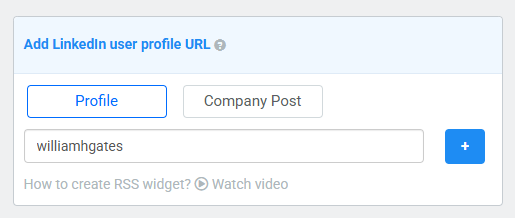
- Add the LinkedIn URL and connect
Paste your LinkedIn profile or company page URL into the input field and click the plus (+) button to connect it. The widget will fetch recent public posts from that source so you can see them instantly in the preview area. - Pick a style: Thumbnail or Card
Under Style, choose between Thumbnail and Card. Thumbnail works best for sidebars or compact sections, while Card is ideal when you want larger posts with more detail in a main content area.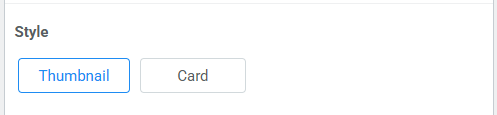
- Customize and embed
Adjust width, height, colors, and options like scroll or autoplay until the preview matches your site’s design. Then copy the embed code and paste it into any HTML block in WordPress, Wix, or your custom site, and publish the LinkedIn widget will stay up to date automatically.
Place on high-traffic pages; monitor GA4/HubSpot for engagement tweaks.
Related posts

TikTok Widget for Websites | Easy Setup
Contents1 Why Add TikTok Videos to Your Site2 How to Make a TikTok Widget (5 Easy Steps)3 Best Practices...
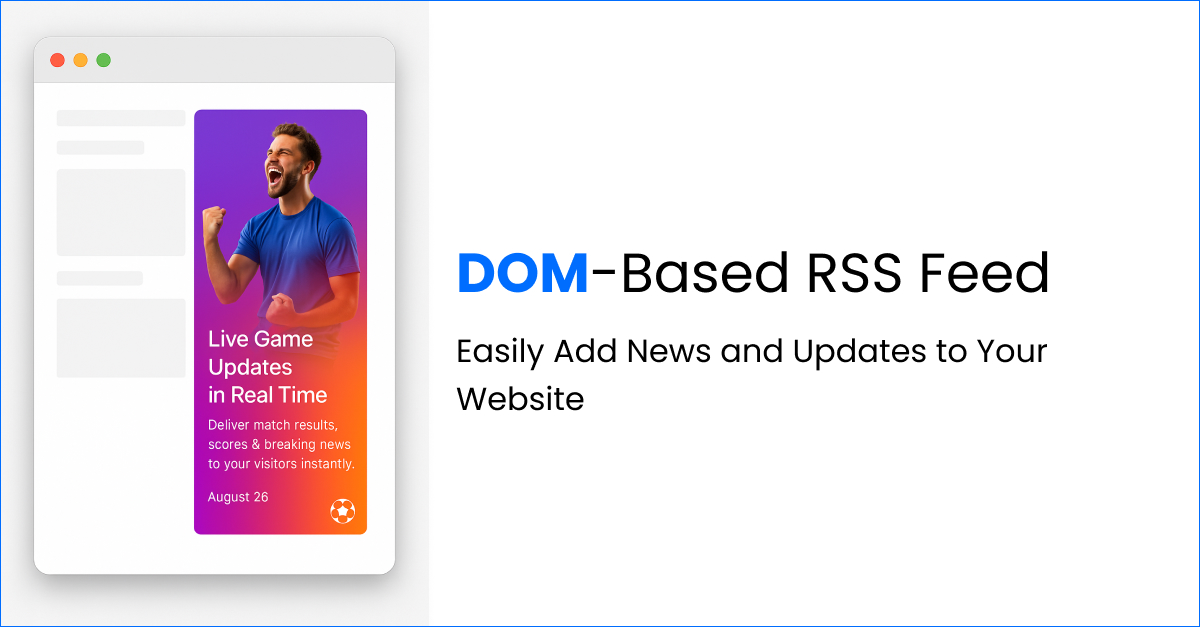
New DOM-Based RSS Feed: Easily Add News and Updates to Your Website
Contents1 A Better Way to Share News with a DOM-Based RSS Feed1.1 What was the Old iFrame RSS Feed?1.2...
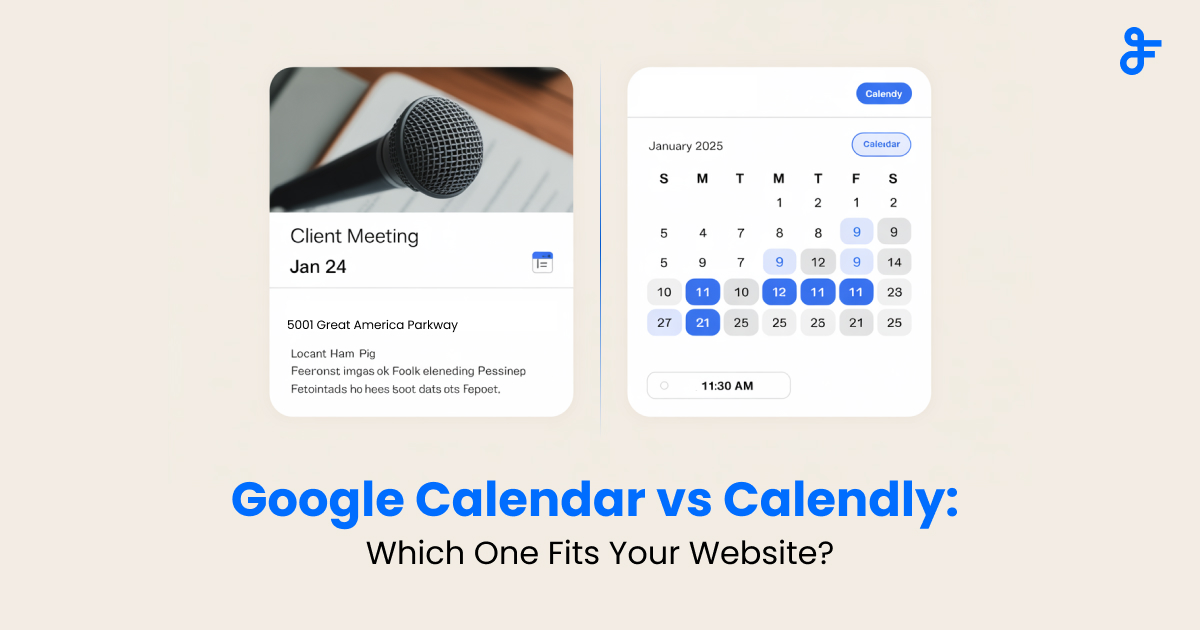
Google Calendar vs Calendly: Calendar Widget vs Booking Tools—What’s Best for Your Website?
Contents1 What is a Calendar Widget?1.1 Why Calendar Widgets Are Handy:1.2 What Are Booking Tools?1.2.1 Why Booking Tools Are...