How to Feed Live RSS Data into ChatGPT, Claude & Gemini

Your AI assistant is brilliant, but frozen in time. Here’s how to give ChatGPT, Claude, and Gemini a steady stream of fresh, real-world information using something you already understand: RSS.
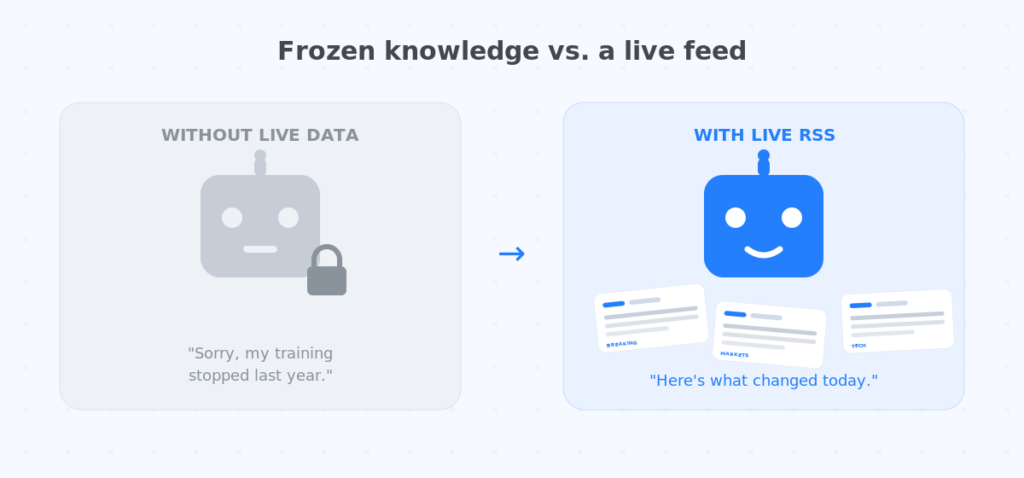
Ask ChatGPT what happened in the news this morning and you’ll often get a polite version of “I don’t know.” That’s not a bug, it’s how large language models work. Each one is trained up to a certain date, called a knowledge cutoff. After that point, the model simply hasn’t seen the world. New product launches, breaking headlines, price changes, fresh regulations, all invisible unless you hand the information over yourself.
For casual questions, that’s fine. But the moment you want AI to help with anything time-sensitive, tracking competitors, monitoring your industry, or pulling in live news for AI to summarize, that frozen knowledge becomes a real limitation.
The good news: you don’t need to be a developer to fix it. One of the oldest, simplest technologies on the web quietly solves the problem. It’s called RSS, and in this guide, we’ll show you exactly how to feed RSS into ChatGPT, Claude, and Gemini, so your AI always works with live, current information instead of last year’s snapshot.
Why AI Needs Live Data
An AI model with no live data is like a very smart colleague who’s been on a desert island for a year. Their reasoning is sharp, but their facts are stale. Connecting a live feed brings them back up to speed, continuously. Here are the situations where that matters most:
News monitoring
Get a summarized digest of the day’s top stories instead of scrolling ten different sites.
Competitor tracking
Watch rivals’ blogs and press pages so you hear about launches the moment they publish.
Industry updates
Follow trade publications and analysts to stay ahead of shifts in your market.
Regulatory changes
Track government and compliance feeds so new rules never catch you off guard.
Product launches
Monitor release notes and announcement feeds across the tools you depend on.
Customer sentiment
Pull in review sites and forums to spot trends in what people are saying.
In every one of these cases the pattern is the same: information changes constantly, and you want your AI to reason over the latest version, not a snapshot from months ago.
What Is an RSS Feed?
RSS stands for Really Simple Syndication, and the name is honest. An RSS feed is just a plain, machine-readable list of a website’s newest content, headlines, summaries, links, and dates, updated automatically every time that site publishes something.
Think of it as a website’s “what’s new” channel. Instead of you visiting the site to check for updates, the site broadcasts its updates in a tidy, structured format that any tool can read. That structure is exactly what makes an AI RSS feed so powerful: the data is clean, predictable, and always current.

The whole idea in one line: a website publishes → its RSS feed captures the update → your AI reads it and reasons over it.
Methods to Connect RSS with AI
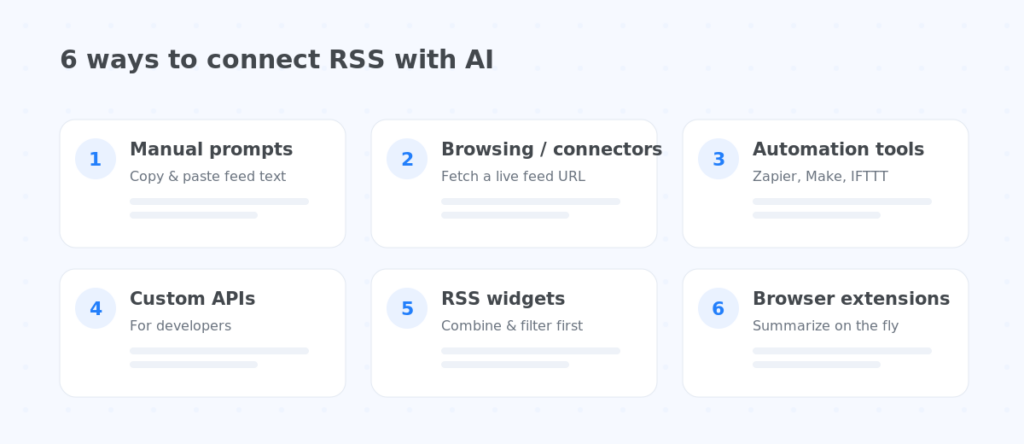
There’s no single “right” way to feed RSS into an AI model, it depends on how hands-on you want to be. Here are the main approaches, from the simplest to the most technical.
1. Manual prompts (the zero-setup method)
The easiest option needs no tools at all. Open a feed in your browser, copy the latest headlines and summaries, and paste them into ChatGPT, Claude, or Gemini with an instruction like “Summarize these five stories into a 100-word briefing.” It’s manual, but perfect for a quick one-off. All three assistants happily reason over text you paste in.
2. Built-in browsing & connectors
Modern versions of these assistants can also fetch a web page or feed URL when browsing is enabled. Give ChatGPT or Gemini a feed link and it can pull a live snapshot on the spot. Claude can do the same when you paste a URL with web access turned on. The catch: this is a one-time fetch, not a subscription, the AI won’t remember the feed or check it again on its own.
3. Automation tools (the sweet spot for most people)
This is where things get genuinely hands-off. No-code platforms like Zapier, Make, and IFTTT have ready-made “RSS” and “AI” building blocks. You connect a feed to an AI step, and every time the feed updates, the tool automatically sends the new item to ChatGPT or Claude and delivers the result to your inbox, Slack, or a doc. Set it once and it runs forever.
4. Custom APIs (for developers)
If you have technical resources, you can write a small script that parses feeds and passes the content into an AI model’s API. This gives you total control over filtering, formatting, and scheduling, at the cost of setup and maintenance.
5. RSS widgets (clean, reusable feeds)
Widgets like FeedWind sit a step earlier in the chain: they let you combine, filter, and clean your feeds before the data ever reaches your AI. Instead of juggling ten messy source URLs, you point your automation (or your prompt) at one tidy, pre-filtered feed. More on this below.
6. Browser extensions
A number of extensions can grab the page or feed you’re viewing and send it straight to an AI sidebar for instant summarizing. Handy for reading on the fly, though less suited to unattended, always-on workflows.
Quick takeaway: If you want it right now, paste text manually. If you want it automatic, use an automation tool. If you want your feeds clean and combined first, put a widget like FeedWind in front of the whole thing.
Step-by-Step: Try It Yourself Right Now
Enough theory, here are real, copy-paste examples you can run in the next five minutes. For all three, we’ll use a public sample feed you can swap for your own: https://feeds.bbci.co.uk/news/rss.xml (BBC News). To find the feed URL of any site, look for the RSS icon, add /feed or /rss to the site’s address, or search “[site name] RSS feed“.
ChatGPT – the fastest way
Option A – paste it in (works on any plan): Open the feed URL in your browser, select the headlines and summaries, copy them, then paste into ChatGPT with this prompt:
Option B – let it fetch live: With browsing on, paste the feed link and ask ChatGPT to read it directly:
Claude – great for longer digests
Claude shines when you hand it a lot of text to condense. Paste the feed content (or a feed URL with web access on) and use a prompt like:
Because Claude handles large inputs well, this is the best choice when you’re combining several feeds at once into a single digest.
Gemini – with live web access
Gemini can pull a feed or page live. Give it the URL and tell it what you want:
Bonus – make it automatic (no copy-paste)
To get a briefing every morning without lifting a finger, wire a feed to an AI step in a no-code tool. Here’s the recipe in Zapier or Make:
- Trigger: Choose “RSS → New Item in Feed” and paste your feed URL (a combined FeedWind feed works great here).
- Action: Add an “OpenAI / ChatGPT” (or Claude) step and drop in a summarizing prompt like the ones above, inserting the new item’s title and content.
- Deliver: Add a final step – Email, Slack, or Google Docs – to send yourself the summary.
- Turn it on: Set it to check hourly or daily. From now on, fresh stories arrive pre-summarized.
Pro tip: Point step 1 at a single FeedWind feed that already combines and filters your sources. Your automation stays simple, and the AI only ever sees clean, relevant items, which means better summaries and lower token costs.
Example Workflows
Theory is nice, but here’s what “RSS + AI” actually looks like in day-to-day work. Each of these can be built with an automation tool and a well-chosen feed.
| Workflow | How it works |
|---|---|
| Daily AI news briefing | Every morning, top headlines from your chosen news feeds are summarized into a five-bullet digest and emailed to you. |
| Marketing trend summaries | Marketing blogs feed into a weekly “what’s changing” recap so your team never misses a shift. |
| Competitor updates | A rival’s blog and press feed trigger an instant Slack alert – summarized – whenever they publish. |
| Cybersecurity alerts | Vulnerability and threat feeds are filtered for your tech stack, then flagged by severity. |
| Finance news | Market and company feeds are condensed into a plain-language morning market note. |
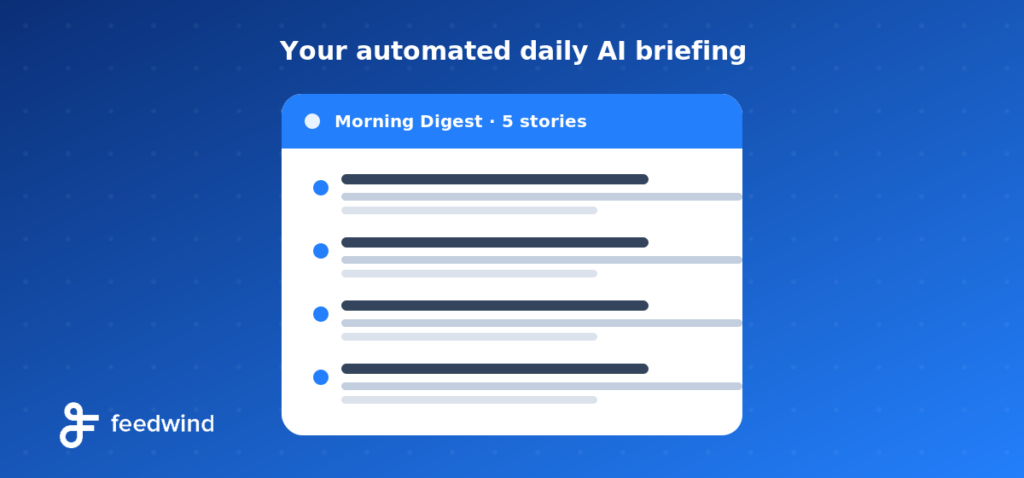
An RSS-powered workflow delivers a clean, summarized view of live data – right where you work.
Best Practices
Feeding RSS into AI is easy to start and easy to get wrong. A few habits keep your results sharp and your costs low.
- Choose reliable feeds. The quality of your AI’s output depends entirely on the quality of the input. Pick reputable, well-maintained sources over random aggregators.
- Avoid duplicates. The same story often appears across many feeds. De-duplicate so your AI isn’t summarizing the same news five times (and charging you for it five times).
- Filter irrelevant content. Use keyword filters to keep only what matters. A feed about “Apple” shouldn’t fill your briefing with fruit recipes.
- Mind your refresh intervals. Checking every minute is usually overkill. Match the refresh rate to how fast the source actually updates – hourly or daily is plenty for most needs.
- Manage token limits. AI models can only read so much text at once (measured in “tokens”). Feed summaries and headlines rather than entire articles, and you’ll get faster, cheaper, cleaner results.
The golden rule: clean input equals clean output. Most disappointing AI results trace back to messy, unfiltered, duplicated feeds – not the model itself.
How FeedWind Can Help
Everything above points to one bottleneck: the feed itself needs to be clean, combined, and manageable before it reaches your AI. That’s exactly the job FeedWind was built for.
Aggregate multiple feeds
Merge dozens of sources into a single “super-feed” so your AI reads one tidy stream instead of many.
Filter content by keyword
Include or exclude items by the words you choose – only relevant stories make it through.
Embed anywhere
Drop the feed onto a page, dashboard, or internal wiki with a simple copy-paste snippet.
Easy management
Add, remove, and re-style feeds from one place – no code, no maintenance headaches.
Where FeedWind fits: put it at the start of your pipeline. FeedWind aggregates and filters your sources into one clean feed, and then your prompt, automation tool, or API points at that single URL. Your AI gets the good stuff, and nothing else.
Frequently Asked Questions
Not natively as a subscription, but yes in practice. You can paste feed content into ChatGPT for it to summarize, give it a feed URL to fetch when browsing is on, or use an automation tool to send new feed items to ChatGPT automatically. The automation route is what most people mean by “ChatGPT RSS feed.”
Claude has no built-in RSS subscriptions, but it will happily summarize feed content you paste in, and it can fetch a feed URL for a one-time snapshot when web access is enabled. For an always-on Claude RSS workflow, connect a feed to Claude through an automation platform.
Yes, in the same way. Gemini can read feed content you provide and pull a live page when browsing. Pair it with an automation tool for a recurring, unattended Gemini RSS briefing.
Feeds update whenever the source website publishes new content – sometimes within seconds, sometimes daily. You control how often your workflow checks the feed, so you can match the refresh rate to your needs.
Absolutely – and you should. Combining feeds into a single aggregated stream (with a tool like FeedWind) is the cleanest way to give your AI a broad but manageable view without juggling many separate URLs.
AI doesn’t have to be stuck in the past. With a clean RSS feed flowing in, ChatGPT, Claude, and Gemini stop guessing and start working with what’s happening right now – today’s news, this week’s launches, this morning’s alerts. Set up the feed once, and your AI stays current on its own.
Related posts

TikTok Widget for Websites | Easy Setup
TikTok videos grab attention like nothing else. A TikTok widget puts those short, fun videos right on your website –...
LinkedIn Widget: Live Feed Setup
A LinkedIn widget lets you display live posts from your LinkedIn profile or company page directly on your website...

New DOM-Based RSS Feed: Easily Add News and Updates to Your Website
A Better Way to Share News with a DOM-Based RSS Feed We’re excited to introduce a major upgrade to...